Posted in platform, software

Notion Review: Features, Pricing, and Whether Notion Plus Is Worth It Over the Free Plan in 2026

At a Glance

Best forIndividuals and teams who want one flexible workspace for notes, docs, wikis, and lightweight project tracking
Free planYes – unlimited pages/blocks for solo use; block limit applies once a workspace has 2+ members
Entry paid planPlus, $10 per member/month (billed monthly; Notion advertises up to 20% off with annual billing but does not publish the exact annual per-seat rate)
Top planBusiness, $20 per member/month; Enterprise is custom-priced
File upload limit5 MB per file on Free; 5 GB per file on Plus, Business, and Enterprise
Page history7 days (Free), 30 days (Plus), 90 days (Business), custom (Enterprise)
AI featuresLimited trial of Notion Agent on Free/Plus; full Notion Agent, AI Meeting Notes, and Enterprise Search (beta) on Business; Custom Agents are billed separately via Notion credits

Pricing and limits verified against Notion’s official pricing page as of late 2026; always check notion.com/pricing before buying, since SaaS pricing changes without much notice.

Short Verdict

Notion remains one of the most flexible workspace tools available, and for a single user its free plan is genuinely generous – unlimited pages and blocks, with no seat-based nag screens. The calculus changes the moment a second person joins the workspace: Free workspaces with 2+ members hit a block limit, and most of the features that make Notion useful for teams – version history beyond seven days, larger file uploads, and any serious AI assistance – sit behind the $10/month Plus plan or the $20/month Business plan. For a solo note-taker, stay on Free. For a small team that shares a wiki or project tracker, Plus is close to mandatory rather than optional.

What It Is

Notion is an all-in-one workspace that combines notes, documents, wikis, databases, and lightweight project management inside a single block-based editor. Instead of separate apps for docs, spreadsheets, and task boards, Notion lets you build all three from the same primitive – a “block” – and link them together. A page can embed a database that renders as a table, a kanban board, a calendar, or a gallery, all pulling from the same underlying data. That flexibility is Notion’s main selling point and also its main learning curve: it is closer to a construction kit than a ready-made app, so new users often spend their first week building templates rather than using them.

Over the past two years Notion has layered AI features on top of that base: a “Notion Agent” that can search and act across a workspace, AI-generated meeting notes, and “Custom Agents” that run on a separate credit-based pricing model ($10 per 1,000 Notion credits after a free trial). These sit on top of the core per-seat subscription rather than replacing it.

Pricing Breakdown

PlanPrice (per member/month)Who it’s forKey features added
Free$0IndividualsUnlimited blocks for solo use (block limit applies with 2+ members), 7-day page history, 5 MB file uploads, limited AI trial
Plus$10Small teamsUnlimited blocks for the whole team, 30-day page history, 5 GB file uploads, basic page analytics
Business$20Growing companies (Notion’s “Recommended” tier)Private teamspaces, SAML SSO, granular database permissions, full Notion Agent + AI Meeting Notes + Enterprise Search (beta), advanced page analytics, 90-day history
EnterpriseCustomLarge organizationsSCIM provisioning, audit log, domain management, admin content search, zero data retention with LLM providers, custom page history

Guests can be invited to specific pages at no extra cost on any plan; they only see what they’re explicitly given access to. Custom AI Agents run on a separate, usage-based credit system layered on top of whichever seat plan you’re on, so heavy AI automation use can add meaningfully to the per-seat price above.

Pros

  • Extremely flexible block-based editor that can replace docs, wikis, and simple project trackers in one tool
  • Free plan has no page or block limit for a solo user, which is rare among competitors
  • Databases with multiple views (table, board, calendar, gallery, timeline) from the same dataset
  • Guests can be added to specific pages for free, useful for freelancers and client collaboration
  • Large template ecosystem, both official and community-built

Cons

  • Block limit kicks in immediately for any workspace with 2 or more members on the Free plan
  • Meaningful AI features (full Notion Agent, Enterprise Search) are gated behind the $20/month Business plan
  • Steeper learning curve than purpose-built apps – building a usable system takes real setup time
  • Offline support and raw performance on very large databases lag behind dedicated note or database tools
  • Custom AI Agents use a separate credit-based charge on top of the seat price, which can make AI-heavy usage harder to budget for

Who It’s a Good Fit For

Solo users who want one place for notes, planning, and light databases will find the Free plan hard to beat. Small teams of 2–10 people who need a shared wiki, light project tracking, and don’t require enterprise security controls are well served by Plus. Companies that need SSO, granular permissions, or workspace-wide AI search should budget for Business.

Who Should Look Elsewhere

Teams that mainly need structured task/sprint management with heavier automation (dependencies, time tracking, Gantt views out of the box) are often better served by a dedicated project-management tool. Teams that need robust offline access or handle very large databases may hit friction that a purpose-built database tool wouldn’t have. If AI automation is the primary goal rather than a nice-to-have, the separate credit-based pricing for Custom Agents is worth modeling carefully before committing.

Bottom Line

Notion earns its popularity: the free tier is one of the most usable in the category for individuals, and Plus at $10/month is a reasonable price for a small team that outgrows solo block limits. Business at $20/month is where the real AI and security features live, so teams evaluating Notion for AI-assisted search or SSO should budget at that tier rather than Plus. Shop the official pricing page directly, since Notion periodically adjusts limits and AI feature gating.

FAQ

Is Notion really free for personal use?
Yes – a single-user Notion workspace has no page or block limit on the Free plan. The block limit only applies once a workspace has two or more members.

Do I need Plus or Business to use Notion AI?
Free and Plus include only a limited trial of Notion Agent. The full Notion Agent, AI Meeting Notes, and Enterprise Search (beta) are Business-plan features.

Can I add external collaborators without paying for extra seats?
Yes. Guests can be invited to specific pages for free on any plan; they only see what they’ve been explicitly granted access to.

How much does annual billing save?
Notion’s pricing page advertises “save up to 20% with yearly” billing but does not publish the exact discounted per-seat rate on the page, so check the live checkout flow for the current annual price before committing.

Sources

Posted in platform, software

Figma Review: Features, Pricing, and Whether the Free Plan Is Enough for Small Teams in 2026

Get Figma: Visit the official Figma pricing page to see live plan details.

At a Glance

SpecValue
Free planYes — unlimited file storage, 3 projects, 2 members, 30-day version history
Starting paid priceProfessional: $12/editor/month billed annually, or $15/month billed monthly
Mid tierOrganization: $45/editor/month billed annually
Top tierEnterprise: custom pricing, contact sales
Best forProduct, design, and engineering teams doing collaborative UI/UX design and prototyping
PlatformsBrowser-based, plus desktop apps for Windows and macOS
Bundled toolsFigJam (whiteboarding) and Dev Mode (design-to-code handoff) are part of the same product family
Billing flexibilityMonthly or annual per-editor billing; viewers are free on all plans

Short Verdict

Figma remains the default choice for interface design and prototyping in 2026, mainly because it turned design into a real-time, multiplayer activity years before most competitors caught up. The free plan is genuinely usable for a solo designer or a two-person side project, but it caps out fast: once a team needs more than two members or more than three active projects, the jump to Professional at $12–15 per editor per month is close to mandatory. For most small teams, that’s still cheap relative to the hours it saves in handoff and feedback cycles — the real question isn’t whether Figma is good, it’s whether your team is small enough and simple enough for the free tier to last.

What It Is

Figma is a browser-based interface design and prototyping tool that lets multiple people edit the same file simultaneously, similar to how Google Docs works for text. It’s used heavily by product designers to create UI mockups, by teams to build and maintain shared component libraries (“design systems”), and by engineers to inspect finished designs for exact spacing, colors, and assets through its Dev Mode handoff tooling. Figma also owns FigJam, a separate but tightly integrated whiteboard product for brainstorming, flowcharts, and workshops, and Figma Slides for presentations — so a Figma subscription in practice often covers more than just screen design.

Because it runs in the browser (with optional desktop apps for Windows and macOS), there’s no installation friction for new collaborators — a stakeholder can be invited to view or comment on a file in seconds. That accessibility, combined with a plugin ecosystem and native support for interactive, clickable prototypes, is a big part of why Figma displaced desktop-only tools like Sketch for most team workflows over the past several years.

Pricing Breakdown

PlanPriceWho it’s forWhat you get
Free$0Individuals, students, very small or two-person teamsUnlimited file storage, 3 projects, 2 members, 30 days of version history, unlimited free viewers
Professional$12/editor/month billed annually, or $15/month billed monthlyFreelancers and small-to-mid teamsEverything in Free plus unlimited projects and files, unlimited version history, a shared team library, and private projects
Organization$45/editor/month billed annually (no public monthly rate)Growing companies that need governanceEverything in Professional plus unlimited teams, draft ownership controls, organization-wide design systems, advanced access and privacy controls, enforced SSO/2FA, SAML-based SSO, and audit reports
EnterpriseCustom — contact salesLarge organizations with compliance or scale requirementsFigma does not publish Enterprise feature details on its pricing page; pricing and feature scope are negotiated directly

A couple of pricing details worth flagging for budgeting purposes: viewers are free on every plan, so you only pay for the people actually editing files, and editors added mid-cycle to an annual plan are billed at the monthly rate until the next renewal. Figma does not publish an Enterprise price list, so any specific enterprise quote should be confirmed directly with Figma’s sales team rather than assumed from third-party estimates.

Pros

  • Real-time multiplayer editing makes design reviews and co-design sessions far faster than file-based tools.
  • Viewers and commenters are free on every plan, so stakeholders outside the design team cost nothing to include.
  • Dev Mode gives engineers a dedicated inspection view for specs and assets without needing a separate handoff tool.
  • FigJam and Figma Slides extend the same account into whiteboarding and presentations, reducing tool sprawl.
  • Runs fully in the browser, so onboarding a new collaborator doesn’t require anyone to install software.

Cons

  • The free plan’s 2-member and 3-project caps are tight — most teams outgrow it almost immediately.
  • Governance features like enforced SSO and audit reports are locked behind the much pricier Organization tier, with no public monthly rate shown.
  • Enterprise pricing is entirely opaque until you talk to sales, making it hard to budget in advance.
  • Per-editor billing can get expensive for larger design organizations compared with flat-rate alternatives.
  • Heavy, complex files can still feel sluggish in the browser compared with native desktop design tools.

Who It’s a Good Fit For

Figma makes the most sense for product teams where designers, PMs, and engineers all need eyes on the same file — the free viewer access alone justifies adoption for cross-functional teams. Small design teams of three to ten people land comfortably on the Professional plan, and the unlimited projects and files there remove most of the friction the free tier creates. Agencies and freelancers who need to share polished, interactive prototypes with clients also benefit from the no-install, link-based sharing model.

Who Should Look Elsewhere

A true solo user who only occasionally needs to design something — and never needs a second collaborator or a fourth project — can likely stay on the free plan indefinitely, but anyone building a real team workflow should budget for Professional from the start rather than assuming free will hold. Enterprises with strict security and compliance checklists should treat the Organization tier’s $45/editor/month annual rate as a floor, not a ceiling, since Enterprise-level requirements will likely mean a custom (and higher) quote. Teams whose primary need is heavy, high-complexity technical diagramming rather than UI design may be better served by a dedicated diagramming tool.

Bottom Line

Figma’s free plan is a legitimate way to try the product or run a two-person project, but it is not a long-term solution for any team with normal growth plans — the 2-member, 3-project ceiling is low by design. Once you’re ready to commit, Professional at $12–15 per editor per month is reasonably priced for what it unlocks, and the jump to Organization is really about governance and security rather than core design functionality. For most small teams evaluating Figma in 2026, the practical plan is: start free to confirm fit, then move to Professional the moment a third project or third collaborator shows up.

FAQ

Is Figma free to use?

Yes. Figma’s free plan includes unlimited file storage, up to 2 members, 3 projects, and 30 days of version history, with unlimited free viewers on any plan.

What’s the real difference between Professional and Organization?

Professional removes the free plan’s project and file limits and adds a team library and private projects. Organization is aimed at larger companies and adds unlimited teams, organization-wide design systems, enforced SSO and 2FA, SAML-based SSO, and audit reports — governance features rather than new design capabilities.

Does Figma have a desktop app, or is it browser-only?

Figma runs fully in the browser and also offers desktop apps for Windows and macOS for people who prefer a native window and offline-friendly caching, though real-time collaboration still requires an internet connection.

How much does Figma Enterprise cost?

Figma does not publish Enterprise pricing on its website; it’s sold through a custom quote after talking to Figma’s sales team, so any number you see elsewhere should be treated as an estimate rather than an official figure.

Is Figma’s free plan enough for a small team in 2026?

Only for the smallest possible team — the free plan caps out at 2 members and 3 projects. Most “small teams” in the normal sense of 3+ people or more than a handful of active projects will need at least the Professional plan.

Sources

Posted in platform, software

Zoom Review: Features, Pricing, and Whether the Free Plan Covers Small Team Meetings in 2026

Get Zoom: Visit the official Zoom pricing page →

At a Glance

SpecValue
Free planYes — Basic: 40-minute meetings, up to 100 participants, local recording only
Starting paid pricePro: $14.16/user/month billed annually, or $16.99 monthly
Recommended tierBusiness: $18.33/user/month billed annually, or $21.99 monthly
EnterpriseContact sales
Best forSmall teams that need reliable video meetings with built-in AI summaries

Short Verdict

Zoom’s free Basic plan is fine for quick calls, but its 40-minute meeting limit is the deciding factor: any team that regularly runs longer meetings will hit it within days. Pro removes that limit (meetings can run up to 30 hours), adds 10GB of cloud recording per user, and includes unlimited AI meeting summaries, which is where Zoom’s AI features become genuinely useful. Business mainly raises meeting size to 300 participants and unlocks the full set of AI features, so most small teams can start on Pro and move up only if they host larger meetings.

What Zoom Is

Zoom started as a video meeting app and now sells its subscriptions as Zoom Workplace, which bundles meetings with team chat, whiteboards, and AI features such as meeting summaries. Plans are priced per user, with a discount for annual billing, across four tiers: Basic (free), Pro, Business, and Enterprise.

Pricing Breakdown

PlanPrice per userMeeting lengthParticipantsCloud storageAI features
BasicFree40 minutes100Local recording only3 meeting summaries and 20 AI queries per month
Pro$16.99/mo, or $14.16/mo billed annually30 hours10010GB per userUnlimited meeting summaries, basic AI queries
Business$21.99/mo, or $18.33/mo billed annually30 hours30010GB per licenseUnlimited AI features, plus whiteboard AI
EnterpriseContact sales30 hoursLarger meetings (confirm cap with sales)Unlimited cloud recordingUnlimited AI features

Prices are in USD per user. Zoom’s pricing page lists the Enterprise participant limit inconsistently, showing 1,000 on the plan card and 500+ in the comparison table, so we have not quoted a single number; ask sales to confirm the cap for your configuration.

AI Features: What Each Tier Gets

Even the free Basic plan now includes a small taste of Zoom’s AI: three meeting summaries and 20 AI queries a month. Pro makes meeting summaries unlimited, which is the feature most small teams actually use, while keeping AI queries at a basic level. Business and Enterprise unlock unlimited AI features, and Business adds AI for whiteboards. If automatic meeting recaps are the main reason you are considering Zoom, Pro is enough.

Pros

The free plan supports 100 participants, which is generous for occasional calls. Pro’s 30-hour meeting limit effectively removes time caps for normal use, and unlimited AI meeting summaries arrive at the entry paid tier rather than a premium one. Annual billing cuts the per-user price by roughly 17% on both Pro and Business. Zoom is also widely familiar to clients and guests, which reduces friction when meeting people outside your company.

Cons

The 40-minute cap on the free plan makes it impractical for regular team meetings. Pro keeps the same 100-participant limit as the free plan, so you pay for Business if you need bigger meetings. Cloud storage is 10GB per user or license on Pro and Business, which fills up quickly if you record often. Enterprise pricing and its participant limit both require a sales conversation.

Who It’s a Good Fit For

Small teams and freelancers who meet clients regularly and want meetings without time limits plus automatic AI summaries. Pro covers that at $14.16 per user a month on annual billing. Organizations that run all-hands or webinars-style meetings above 100 people should start at Business.

Who Should Look Elsewhere

Teams already paying for Google Workspace get Google Meet as part of that subscription and may not need a separate Zoom plan; see our Google Workspace review. If your meetings are short and infrequent, the free Basic plan may be all you need.

Bottom Line

Zoom’s free plan works for short calls, but the 40-minute limit means most working teams will pay. Pro is the right default: no practical time limit, 10GB of cloud recording per user, and unlimited AI meeting summaries for $14.16 per user a month billed annually. Move to Business only when you need meetings larger than 100 people or the full AI feature set.

Frequently Asked Questions

  • How long can a free Zoom meeting last? 40 minutes on the Basic plan.
  • How much is Zoom Pro? $16.99 per user per month, or $14.16 per user per month billed annually.
  • Does the free plan include AI summaries? Yes, but only three meeting summaries and 20 AI queries a month.
  • How many people can join a Zoom Business meeting? Up to 300 participants.

Sources

Posted in platform, technology

Best Cloud GPU Platforms for AI Training in 2026: Lambda vs RunPod vs CoreWeave vs AWS

Gartner now projects global data center power demand will rise 27% in 2026 alone, to 132 gigawatts (its separate forecast for electricity consumption is growth of about 26%), with AI-optimized servers — the GPU racks that train and run today’s models — the single biggest driver of that growth. Almost none of that capacity is being bought outright by the companies training AI models; it’s being rented by the hour from cloud GPU providers. Here’s how the four most-used options actually price an NVIDIA H100, the GPU most AI workloads still train on.

At a Glance

ProviderH100 On-Demand ($/GPU-hr)B200 On-Demand ($/GPU-hr)Pricing Model
Lambda$2.49 (1x PCIe) – $3.49 (8x SXM)$6.69 – $6.99Per-GPU, on-demand or 3-year reserved
RunPod$2.89 (PCIe) – $3.99 (SXM)$7.99Per-GPU, per-second billing (Pods)
CoreWeave$4.25 (PCIe) – $4.76 (HGX/SXM)Not published (contact sales)À la carte: GPU, vCPU, and RAM priced separately
AWS (EC2 P5)~$6.88 effective (8x H100 bundled)Not generally available on P5Full-instance on-demand, or reserved/savings plans

Best for: startups and independent researchers who want to rent raw GPU capacity by the hour without building or leasing a physical data center.

Short Verdict

On pure H100 price, Lambda and RunPod undercut CoreWeave and AWS by a wide margin — Lambda’s 1x PCIe on-demand rate is roughly a third of AWS’s effective per-GPU cost on a P5 instance. CoreWeave sits in the middle on list price but is built for large, often multi-year reserved clusters rather than single-GPU rentals, which is a different buying motion than the other three. AWS is the most expensive per GPU-hour, but that price bundles enterprise networking, compliance certifications, and integration with the rest of AWS that the smaller specialists don’t offer out of the box.

What This Market Actually Is

Cloud GPU rental (sometimes called GPU-as-a-service) lets a company train or run AI models on someone else’s physical hardware, billed by the GPU-hour instead of bought outright. It exists because a single NVIDIA H100 costs tens of thousands of dollars, a full 8-GPU server far more, and the data center space, power, and cooling to run one at scale is its own multi-year infrastructure project — exactly the kind of buildout Gartner’s 2026 forecast is measuring. Renting lets a team scale GPU access up or down with their actual training workload instead of carrying that capital cost themselves.

How the Four Providers Actually Price It

Lambda prices per GPU with no minimum commitment: a single H100 PCIe runs $2.49/hour on-demand, and an 8-GPU H100 SXM server works out to $3.49 per GPU-hour ($27.92/hour total). Lambda also sells 3-year reserved H100 capacity at $1.89 per GPU-hour for commitments of 64 to 32,000 GPUs — a steep discount, but only accessible at a scale most individual developers never reach. Its B200 pricing runs $6.69–$6.99 per GPU-hour depending on configuration, and it does not publish an on-demand H200 rate, listing that model as reserved-only with pricing by quote.

RunPod is priced per-GPU with per-second billing through its “Pods” product: H100 PCIe runs $2.89/hour and H100 SXM $3.99/hour, with A100 SXM and PCIe both at $1.79/hour. Its B200 rate is $7.99/hour, the highest of the four providers we could confirm a published number for. RunPod’s per-second billing (rather than per-hour minimums) makes it well suited to short, bursty jobs where you don’t want to pay for a full hour of idle GPU time.

CoreWeave prices à la carte: the GPU, vCPUs, and RAM are each billed separately rather than bundled into one instance price, so its $4.25/hour (H100 PCIe) and $4.76/hour (H100 HGX/SXM) GPU rates don’t include the compute and memory you’ll also be charged for. CoreWeave doesn’t publish a fixed B200 on-demand rate on its pricing page — it’s quote-only, which matches its positioning toward large AI labs negotiating dedicated cluster capacity rather than developers spinning up a single GPU.

AWS doesn’t sell individual H100s at all — its P5 family rents full 8-GPU instances. A p5.48xlarge (8x H100, 640GB total HBM3) runs $55.04/hour on-demand in US East, which works out to roughly $6.88 per GPU-hour when divided evenly across the 8 GPUs — though that figure bundles AWS’s networking, storage, and the rest of the instance, so it isn’t a clean apples-to-apples comparison with the GPU-only rates above. AWS also offers H200 GPUs on its P5e and P5en instance families, and reserved or savings-plan pricing can bring the effective rate down meaningfully below the on-demand figure for sustained usage.

Pros and Cons by Provider

  • Lambda pros: lowest on-demand H100 rates of the four; reserved pricing drops further at scale. Cons: reserved discounts only make sense at large GPU counts; H200 isn’t available on-demand.
  • RunPod pros: per-second billing avoids paying for idle time on short jobs; competitive A100 and H100 PCIe pricing. Cons: highest confirmed B200 rate of the four.
  • CoreWeave pros: built for large dedicated clusters, which suits serious AI-lab-scale training. Cons: à la carte pricing means the advertised GPU rate understates true cost; B200 pricing isn’t published at all.
  • AWS pros: deepest ecosystem integration, broadest compliance certifications, reserved/savings-plan options for sustained workloads. Cons: highest effective per-GPU cost of the four on a straight on-demand basis.

Who It’s a Good Fit For

Independent developers, researchers, and small AI startups training or fine-tuning models on a budget will generally find Lambda or RunPod’s on-demand per-GPU pricing cheaper and simpler than the alternatives. Teams already running production workloads on AWS, or that need AWS’s specific compliance certifications, will find the P5 family’s premium easier to justify once it’s weighed against everything else AWS already provides.

Who Should Look Elsewhere

Anyone needing a single GPU for a short job should think twice before CoreWeave, since its à la carte pricing and large-cluster orientation aren’t built for that use case. And if B200-class hardware is the actual requirement, confirm CoreWeave’s quote-only rate directly before assuming it’ll land anywhere near Lambda’s or RunPod’s published numbers.

Bottom Line

The AI boom’s data center buildout is mostly being financed by the hour, not the server rack, and that rental market has real price spread: Lambda and RunPod currently undercut CoreWeave and AWS by roughly 30–60% per H100 GPU-hour on-demand. Match the provider to the job size — small or bursty workloads favor Lambda’s or RunPod’s per-GPU pricing, while large, sustained training runs are where CoreWeave’s and AWS’s reserved and cluster-scale pricing start to close the gap.

Sources

Posted in Google, platform, technology

Google Workspace Review: Features, Pricing, and Whether Gemini Is Worth Paying For in 2026

Google Workspace bundles Gmail, Docs, Sheets, Slides, Meet, and Drive into one business subscription, and every tier now ships with Gemini AI baked in rather than sold as an add-on. Here’s what each plan actually costs per user, how much storage you get, and what Gemini can (and can’t) do at each level.

Get Google Workspace: Visit the official Google Workspace pricing page →

At a Glance

PlanPrice (per user/month)Pooled StorageGemini Access
Business Starter$7.00 (promo: $3.50 for 3 months)30GB per userBasic — Gemini in Gmail and chat
Business Standard$14.00 (promo: $7.00 for 3 months)2TB per userExpanded — Gmail, Docs, Sheets, Slides, Meet, Chat, Drive, plus Gemini Notebook
Business Plus$22.00 (promo: $11.00 for 3 months)5TB per userExpanded, same as Standard
EnterpriseCustom — contact sales5TB+ per user (expandable)Expanded, same as Standard

Rating: 4.6/5 from 48,241 reviews on G2 — one of the largest review samples of any software reviewed on this site. User limits: Starter, Standard, and Plus are capped at 300 users; only Enterprise has no user ceiling. All prices are billed monthly in USD and exclude tax.

Short Verdict

The jump from Business Starter to Business Standard is the one that matters most: for $7 more per user per month, storage goes from a tight 30GB to a generous 2TB pooled across the organization, and Gemini’s access expands from basic Gmail help to full integration across Docs, Sheets, Slides, and Meet. Business Starter is really only viable for very small teams that don’t generate much file volume. For nearly everyone else, Standard is the plan that makes Workspace worth it, and Plus only earns its extra cost if you specifically need eDiscovery, retention policies, or more storage than 2TB per user.

What It Is

Google Workspace is Google’s subscription bundle of business email (Gmail on a custom domain), Docs, Sheets, Slides, Drive, Meet, and Chat, positioned as the cloud-native alternative to Microsoft 365. Every plan now includes Gemini, Google’s AI assistant, built directly into the apps rather than sold as a separate license — the difference between tiers is how much of the suite Gemini actually reaches, not whether you get it at all.

Pricing and Gemini Access by Plan

Business Starter costs $7/user/month standard (with a $3.50 promotional rate for the first three months on new sign-ups) and includes 30GB of pooled storage per user plus basic Gemini access — help inside Gmail and a standalone chat assistant. Business Standard costs $14/user/month ($7 promo) and is the first tier where Gemini actually reaches Docs, Sheets, Slides, Meet, Chat, and Drive, while storage jumps to 2TB per user; it also adds Gemini Notebook, a research assistant that grounds its answers in your own uploaded documents. Business Plus costs $22/user/month ($11 promo) with the same Gemini access as Standard but 5TB of storage per user and additional admin controls. Enterprise drops the published price entirely in favor of a sales conversation, offers the same Gemini access as Standard and Plus, and removes the 300-user cap that limits the three self-serve tiers. Google states that none of your organization’s data is used to train its AI models, across every tier.

What Gemini Actually Does

  • Gmail: condenses long email threads, extracts key details, and drafts replies in a professional tone.
  • Docs: generates first drafts from a prompt and can adapt tone to match your existing writing.
  • Sheets: builds full spreadsheets from natural-language prompts and helps with complex formulas and optimization problems.
  • Slides: adds new, editable slides to an existing deck based on a prompt.
  • Meet: takes automatic meeting notes, with translated captions and noise cancellation on Standard and above.

Pros

  • Gemini is now included in every tier rather than sold as a separate per-user AI add-on, which was Google’s pricing model until recently
  • 2TB of pooled storage on Business Standard is generous compared to Microsoft 365’s equivalent tier
  • 4.6/5 across more than 48,000 G2 reviews is an unusually large and consistent sample
  • Google states customer data isn’t used to train its AI models, on every plan

Cons

  • Business Starter’s 30GB storage cap and basic-only Gemini access make it feel like a trial tier more than a real plan
  • Enterprise pricing is fully custom — there’s no published number to compare against competitors without a sales call
  • Self-serve plans cap out at 300 users, forcing larger organizations into the sales-led Enterprise tier regardless of their feature needs
  • Promotional pricing (the $3.50/$7/$11 rates) only lasts three months before reverting to the standard rate

Who It’s a Good Fit For

Small and mid-sized businesses already comfortable in Google’s ecosystem, and teams that want AI assistance built into daily email and document work without licensing it separately, get the clearest value — particularly on Business Standard, where storage and Gemini access both open up.

Who Should Look Elsewhere

Organizations already standardized on Microsoft 365, or those needing more than 300 self-serve seats without a custom Enterprise negotiation, should compare both platforms’ actual per-user costs at their specific headcount before switching. Teams that only need basic email and light document editing may find Business Starter’s limited Gemini access isn’t worth the AI pitch that leads Google’s marketing.

Bottom Line

Business Standard, not Starter, is the plan that makes Google Workspace’s AI pitch real — it’s the cheapest tier where Gemini reaches the whole suite and storage stops being a constraint. Budget for the standard rate once the three-month promo ends, since that’s the number that matters for ongoing cost.

How Google Workspace Compares to Microsoft 365

Google Workspace and Microsoft 365 now sit close together on headline price: Google’s Business Starter and Microsoft’s Business Basic both run $7/user/month, and Business Standard matches at $14/user/month on both platforms following Microsoft’s July 2026 price increase. The real difference shows up in storage and AI. Google pools storage across the whole organization — 2TB per user on Business Standard that the team can draw from collectively — while Microsoft allots a fixed 1TB of OneDrive storage per user that isn’t shared. On AI, every Google Workspace tier includes Gemini at no extra per-user fee (though how much of the suite it reaches depends on the plan), whereas Microsoft sells Copilot as a separate add-on priced at roughly $18 to $25 per user per month on top of a qualifying Business plan.

SpecGoogle WorkspaceMicrosoft 365
Entry-tier price$7/user/month (Business Starter)$7/user/month (Business Basic, after July 2026 increase)
Mid-tier price$14/user/month (Business Standard)$14/user/month (Business Standard, after July 2026 increase)
Storage modelPooled across the organization (2TB/user on Standard)Fixed per-user allotment (1TB OneDrive/user), not pooled
AI assistantGemini included in every paid tier at no extra costCopilot sold as a separate add-on (~$18–$25/user/month)

Frequently Asked Questions

  • Is Gemini included free with Google Workspace? It’s bundled into every paid tier at no separate per-user AI fee, though how much of the suite it reaches depends on the plan — basic Gmail help on Business Starter, full Docs/Sheets/Slides/Meet access from Business Standard up.
  • Does Google Workspace storage get shared across my team? Yes — storage is pooled across the organization rather than fixed per person, so Business Standard’s 2TB-per-user allotment can be drawn from collectively, unlike Microsoft 365’s fixed 1TB-per-user OneDrive allotment.
  • Is Business Starter worth it for a small team? Usually not for long — its 30GB storage cap and basic-only Gemini access make it feel more like a trial tier, and Business Standard is the plan where storage and full Gemini access both open up for $7 more per user per month.
  • How does Google Workspace’s price compare to Microsoft 365’s? They’re close at face value — both charge around $7/user/month at the entry tier and $14/user/month at the mid tier — but Microsoft’s AI assistant, Copilot, is a separate ~$18–$25/user/month add-on, while Google’s Gemini is already included in the Workspace price.

Sources

Posted in Google, platform, technology

Google Workspace vs Microsoft 365: Which Is Right for Your Business in 2026

Google Workspace and Microsoft 365 both bundle email, office apps, cloud storage, and video calling into one per-user subscription, and both have leaned hard into bundling AI assistants into their mid-tier plans rather than selling them separately. The practical differences come down to how each one structures tiers, what’s actually included at the entry level, and how much you’ll pay once introductory discounts expire.

At a Glance

PlanGoogle WorkspaceMicrosoft 365 Business
Entry tierBusiness Starter — $7/user/month, 30GB storageBusiness Basic — $7/user/month, web/mobile Office apps only
Mid tierBusiness Standard — $14/user/month, 2TB storage, Gemini AIBusiness Standard with Copilot — $23.50/user/month, desktop apps + Copilot
Top business tierBusiness Plus — $22/user/month, 5TB storage, eDiscovery/VaultBusiness Premium with Copilot — $32/user/month, device management + security
User limit300 users (Starter/Standard/Plus)300 users (all three Business tiers)

All prices above are list prices per user, per month, billed annually, in USD. Both vendors run introductory promotions that undercut these figures for new customers — confirm current promo pricing directly before purchasing, since both change these periodically.

What You Get at Each Tier

Google’s Business Starter ($7/user/month) includes custom business email, Gemini built into Gmail, Google Meet for up to 100 participants, Google Vids, and 30GB of pooled storage per user — genuinely usable for a small team, but tight if you store a lot of media or documents. Business Standard ($14/user/month) is the plan most small businesses land on: it jumps storage to 2TB per user, adds Gemini throughout Docs and Meet with expanded access, custom mail merge, appointment booking, eSignature, and Meet with recording and up to 150 participants. Business Plus ($22/user/month) adds compliance and security tooling — eDiscovery, Vault, Secure LDAP, advanced endpoint management — plus Meet with attendance tracking for up to 500 participants and 5TB of storage.

Microsoft’s Business Basic ($7/user/month) gets you web and mobile versions only of Word, Excel, PowerPoint, and Outlook — no desktop app installs — plus Teams chat and calls, custom business email, and basic AI chat with web grounding. Business Standard with Copilot ($23.50/user/month) is where desktop Office apps show up, along with Copilot built into Word, Excel, PowerPoint, Outlook, and Teams, and AI chat grounded in your organization’s own data. Business Premium with Copilot ($32/user/month) adds device security and management, advanced threat protection, data loss prevention, and a Windows 11 Pro upgrade with Intune device management — aimed at businesses that need to manage and secure company devices centrally, not just provide office apps.

Where the Two Differ Most

The sharpest difference is at the entry tier: Google’s $7/user/month Starter plan already includes AI features (Gemini) and video calling for up to 100 people, while Microsoft’s $7/user/month Basic plan has no desktop apps and no Copilot at all — you jump to $23.50/user/month before Copilot or desktop Office appear. If your team needs the AI assistant and full desktop apps, the realistic price comparison is Google Standard at $14 versus Microsoft Standard with Copilot at $23.50 — a meaningful gap. Where Microsoft pulls ahead is device management and security depth at the top tier: Business Premium’s Intune device management, data loss prevention, and Windows 11 Pro upgrade are aimed squarely at IT-managed fleets of company laptops, a use case Google Workspace’s Business Plus addresses less directly even with its own endpoint management and Vault features.

Pros and Cons

  • Google Workspace pros: AI and video calling included from the cheapest tier; simpler three-tier structure; generous storage jump at Standard. Cons: less mature device management/security tooling for IT-managed company hardware.
  • Microsoft 365 pros: deepest device management and security story at Premium; Office desktop apps remain the industry standard for complex documents and spreadsheets. Cons: Copilot and desktop apps are locked behind a $23.50/user/month plan — more than triple the entry-tier price.

Who Should Pick Which

Teams that live in a browser, want AI assistance and video calling without jumping tiers, and don’t need heavy desktop Office features are generally better served, and better priced, by Google Workspace Business Starter or Standard. Teams that depend on full desktop Office apps, need to centrally manage and secure company laptops, or are already standardized on Outlook and Teams for other reasons will find Microsoft 365 Business Standard or Premium a more natural fit, even at the higher price point once Copilot is factored in.

Bottom Line

Both platforms now price AI as part of a mid-tier bundle rather than a cheap add-on, but Google reaches that bundle sooner and cheaper, while Microsoft’s Premium tier goes further on device security and management for IT-managed fleets. The right pick depends more on whether your team needs desktop Office apps and centralized device management than on brand loyalty — run the per-user math at the tier that actually includes the features you need, not the cheapest advertised entry price.

Sources

Posted in platform, technology

Integrations, Connectors, and MCP: What They Are and Why MCP Matters

At a Glance

TermWhat It Means
Integration / connectorA built or pre-built link between two apps so data or actions flow between them automatically
iPaaSA platform (Zapier, Workato, Make) that ships many pre-built connectors instead of custom point-to-point code
MCP (Model Context Protocol)An open standard, released by Anthropic on November 25, 2024, for connecting AI applications to external tools and data sources
MCP governanceDonated by Anthropic to the Agentic AI Foundation, a Linux Foundation directed fund, on December 9, 2025

Short Verdict

“Integrations” and “connectors” are the decades-old problem of getting software to talk to other software; MCP is a 2024 attempt to solve a newer, narrower version of that same problem specifically for AI assistants and agents. The two are related but not interchangeable — an iPaaS tool like Zapier connects apps to each other, while MCP standardizes how an AI model connects to tools and data in the first place. Both matter for the same underlying reason: bespoke, one-off integrations don’t scale, and a shared standard means something gets built once and reused everywhere.

Integrations and Connectors, in Plain Terms

An integration is simply a link that lets two pieces of software exchange data or trigger actions in each other — a new row in your CRM creating a task in your project-management tool, or a form submission landing in a spreadsheet. Historically, building these required custom, point-to-point code for every single app pair, which doesn’t scale once you have more than a handful of tools. That’s the gap an iPaaS (integration-platform-as-a-service) fills: as Zapier’s own explainer defines it, iPaaS is “a cloud-based software service solution that lets organizations connect different applications” across cloud, on-premises, and hybrid environments, typically through pre-built connectors and low/no-code tools rather than hand-coded integrations. Zapier itself is a familiar example — its current pricing runs from a Free plan (100 tasks/month, unlimited workflows) up through Professional at $19.99/month billed annually, Team at $69/month billed annually, and a custom Enterprise tier, per Zapier’s own pricing page. Workato, by contrast, markets itself as an “Enterprise iPaaS” aimed at larger organizations automating workflows like Salesforce-to-NetSuite quote-to-cash processes, serving both IT and what it calls “citizen integrator” business users, per its own documentation.

What MCP Actually Is

The Model Context Protocol was announced and open-sourced by Anthropic on November 25, 2024, created by Anthropic engineers David Soria Parra and Justin Spahr-Summers. Per Anthropic’s own announcement, even the most capable AI models are “cut off from data trapped in information silos and legacy systems,” and historically every new data source needed its own bespoke integration — which doesn’t scale any better for AI assistants than it ever did for regular software. MCP’s pitch is to replace that fragmentation with what Anthropic calls “one protocol” and a “universal, open standard” for connecting AI systems to data sources, tools, and workflows.

The current official definition, from the independently-governed modelcontextprotocol.io documentation site, puts it simply: MCP “is an open-source standard for connecting AI applications to external systems.” The docs use a specific, official analogy — not just press shorthand — stating directly: “Think of MCP like a USB-C port for AI applications. Just as USB-C provides a standardized way to connect electronic devices, MCP provides a standardized way to connect AI applications to external systems.”

How It’s Built: Hosts, Clients, and Servers

Per MCP’s official architecture specification, the protocol follows a client-host-server model built on JSON-RPC. The host is the application a person actually uses (Claude Desktop, for example), which creates and manages clients and enforces security policy and user consent. The client is created by the host, with a strict one-to-one relationship to a single server, handling protocol negotiation and keeping servers isolated from each other. The server exposes “resources, tools and prompts” — the protocol’s three core primitives — and can run locally or remotely. A key design principle stated directly in the spec: “Servers should not be able to read the whole conversation, nor ‘see into’ other servers” — the host keeps full conversation context, and servers only see what’s relevant to their own job. In practice, tools are actions the model can call, resources are contextual data the application can read, and prompts are reusable templated instructions — all negotiated when a session starts.

Why It Matters — and Who’s Adopted It

The official docs frame the benefit differently depending on audience: for developers, MCP “reduces development time and complexity” when building or integrating with an AI application; for AI applications themselves, it provides access to “an ecosystem of data sources, tools and apps”; for end users, it means more capable assistants that can access their data and take action on their behalf. The tagline the docs use for the ecosystem effect is “build once and integrate everywhere” — instead of every AI vendor building a custom Slack integration, a Google Drive integration, and a GitHub integration from scratch, one MCP server for each can work across any MCP-compatible AI application.

Adoption moved quickly after the November 2024 launch: Cursor added MCP server support in February 2025, Microsoft brought MCP into Copilot Studio and Cloudflare enabled customers to deploy remote MCP servers by around April 2025, and OpenAI added MCP support to its Agents SDK that same month, with modelcontextprotocol.io’s current documentation now listing ChatGPT among MCP-supporting AI assistants and linking to OpenAI’s own MCP developer docs. Visual Studio Code and Cursor are both listed as MCP-supporting development tools on the current official docs. One figure we’re deliberately not citing precisely: the number of community-built MCP servers now in existence. Estimates circulating across different third-party sources range anywhere from roughly 1,400 to over 11,000, depending on methodology and date — none of that is an Anthropic- or modelcontextprotocol.io-published figure, so treat any specific server count you see elsewhere as a rough, fast-moving estimate rather than a settled number.

The most significant recent change is governance, not adoption: on December 9, 2025, Anthropic donated MCP to the Agentic AI Foundation (AAIF), described as a directed fund under the Linux Foundation, with Anthropic, Block, and OpenAI as founding co-sponsors and Google, Microsoft, AWS, Cloudflare, and Bloomberg named as supporters. MCP’s existing maintainer structure and technical direction are stated to remain unchanged under this arrangement — the Linux Foundation’s role is custodial, not directive. This is independently corroborated by outside reporting beyond Anthropic’s own channels, which is part of why it’s credible as more than a one-source claim.

Bottom Line

Integrations and iPaaS tools solve how regular software talks to other software; MCP solves the newer, specific problem of how an AI assistant talks to your tools and data without a bespoke integration for every single one. Less than two years after its November 2024 launch, MCP has been adopted across a wide swath of the AI tooling landscape and transitioned to vendor-neutral, Linux Foundation-adjacent governance — a sign it’s being treated as infrastructure rather than a single vendor’s side project. If you’re building or buying AI tooling today, whether a connector supports MCP is a reasonable question to ask, in the same way “does this integrate with Zapier” became a reasonable question for SaaS tools a decade ago.

Sources

Posted in e commerce, platform

WooCommerce vs Shopify: Which E-Commerce Platform Is Right for You in 2026

WooCommerce and Shopify answer the same question — “how do I sell things online” — from opposite starting points. WooCommerce is a free plugin you add to a WordPress site you host yourself. Shopify is a hosted platform with a monthly subscription and everything bundled in. That structural difference drives almost every other difference between them.

At a Glance

WooCommerceShopify
Core costFree plugin, no revenue share$29–$399/month (Basic to Advanced), billed yearly or monthly
HostingSeparate cost, typically $25–$350/month depending on trafficIncluded
Online card processing~2.5–2.9% + 30¢ via WooCommerce Payments2.9% + 30¢ (Basic) down to 2.5% + 30¢ (Advanced)
Third-party gateway feeNone2% (Basic) down to 0.6% (Advanced)
Best forStore owners who want full control and already use WordPressStore owners who want everything managed and running on day one

Figures are from WooCommerce’s and Shopify’s own pricing pages as of October 2026. Shopify Plus is a custom enterprise tier; Shopify’s own page lists it starting “from $2,300/month,” though a promotional call-to-action elsewhere on the same page showed $399, so confirm Plus pricing directly with Shopify sales rather than relying on either figure alone.

Short Verdict

Shopify’s monthly fee buys you hosting, security, uptime, and support bundled together, with a predictable (if rising) cost as you scale up plans. WooCommerce’s “free” plugin isn’t free once you add hosting and any paid extensions, but you keep full control of your stack and aren’t locked into Shopify’s ecosystem or card-processing rates. Neither is objectively cheaper — it depends on how much you value not having to manage hosting versus how much you value not being tied to one platform’s fee structure.

WooCommerce: Free Plugin, Real Costs Elsewhere

WooCommerce itself has no subscription fee and takes no revenue share — you install it on a WordPress site you already have or set up. The real costs are hosting (commonly $25–$350/month depending on traffic and performance needs), a payment processor (WooCommerce Payments charges roughly 2.5–2.9% + 30¢ per transaction, with no extra platform fee on top), and whichever paid extensions you need, typically running $29–$299/year each for things like advanced shipping, subscriptions, or specific payment gateways. Multi-market selling and unlimited product variants are included at no extra cost. The tradeoff for that flexibility is responsibility: you (or your host) are managing uptime, security, and updates, rather than a platform doing it for you.

Shopify: Everything Bundled, Fees Scale With Your Plan

Shopify’s plans — Basic ($29/month billed yearly, $39 month-to-month), Grow ($89/month yearly, $105 monthly), and Advanced ($359/month yearly, $399 monthly) — include hosting, security, and support, so there’s no separate infrastructure bill. Online card processing runs from 2.9% + 30¢ on Basic down to 2.5% + 30¢ on Advanced, and using a payment gateway other than Shopify Payments adds a third-party transaction fee on top (2% on Basic, dropping to 0.6% on Advanced). Higher plans also raise staff account limits, API rate limits, and add features like third-party calculated shipping rates. Shopify Plus is a separate custom-priced enterprise tier for high-volume merchants, with unlimited staff accounts, B2B catalogs, and checkout customization.

Who Should Pick WooCommerce

Store owners who already run a WordPress site, want full control over hosting and data, or need highly specific customization that off-the-shelf platforms don’t easily support. It also tends to come out cheaper at very large sales volumes, since WooCommerce takes no percentage of revenue beyond standard card processing.

Who Should Pick Shopify

Store owners who want to launch quickly without managing hosting, security patches, or server performance themselves, and who are comfortable with a predictable monthly subscription instead of a variable set of hosting and extension costs. Shopify’s built-in POS, app ecosystem, and support are also a real advantage for anyone selling in person as well as online.

Bottom Line

The honest comparison isn’t “free vs. paid” — it’s “pay for hosting and extensions piece by piece, with full control” vs. “pay one bundled subscription, with less to manage yourself.” Run the math on your actual expected traffic and sales volume before deciding, since both platforms’ real costs scale very differently as a store grows.

Sources

Posted in software online review

Chromium – Base

It’s true—Chromium has become the “engine” powering approximately 80% of the global browser market. While initiated by Google, it is an open-source project, allowing other companies to skip the massive cost of developing their own rendering engines and focus instead on unique features. StatCounter Global StatsStatCounter Global Stats +5

Browsers Built on Chromium:

Beyond Google Chrome, prominent examples include:

  • Microsoft Edge: Switched to Chromium in 2020 for better web compatibility and extension support.
  • Brave: Focuses on privacy by automatically blocking ads and trackers.
  • Opera & Opera GX: Some of the earliest adopters after abandoning their custom “Presto” engine.
  • Vivaldi: Aimed at power users with extreme interface customization.
  • Samsung Internet: The dominant browser for Samsung mobile devices.
  • Arc: A modern browser that rethinks tab management and user experience. Efficient AppEfficient App +6

The Major Exceptions (Non-Chromium):

Only two major players still maintain their own independent engines:

  1. Mozilla Firefox: Uses its own Gecko engine.
  2. Apple Safari: Uses the WebKit engine. Interestingly, Chromium originally started as a fork of WebKit before they split into separate projects. RedditReddit +3

Why the Shift to Chromium?

The transition is driven by security, speed (specifically the V8 JavaScript engine), and a massive extension ecosystem. Maintaining a modern engine is so complex that even giants like Microsoft found it more efficient to adopt the Chromium base to ensure perfect website compatibility. Sahi ProSahi Pro +3

1. Privacy Differences (Brave vs. Vivaldi vs. Chrome)

While they are all built on Chromium, each browser handles your data differently:

  • Google Chrome: The least private. It integrates deep telemetry with your Google account and uses your browsing history for targeted advertising.
  • Brave: A “hardcore” approach to privacy. It blocks ads, trackers, and fingerprinting directly in the engine by default. It is also fully open-source.
  • Vivaldi: Focused on user control. It offers built-in blockers and granular permissions for every site. Unlike Brave, Vivaldi’s interface (UI) is not open-source, as noted in PCMag reviews.
  • Ungoogled Chromium: For maximalists—this is Chromium with every link to Google’s servers manually stripped out, though it requires manual updates.

2. The Monopoly Problem and Web Standards

Since Google controls Chromium’s development, it effectively sets the rules for the entire internet:

  • Dictating Standards: If Google introduces a new feature in Chromium (e.g., Privacy Sandbox), it overnight becomes the standard that web developers must follow. This makes it harder for Firefox (Gecko engine) to survive, as developers often optimize sites only for Chromium.
  • Manifest V3: Google recently changed how extensions work (Manifest V3), which complicates the effectiveness of traditional ad blockers. While Brave and Vivaldi strive to maintain old functionality, they are ultimately limited by what Google allows in the base code.
  • Antitrust Battles: Due to this dominance, the U.S. Department of Justice (DOJ) attempted to force Google to sell Chrome. However, according to rulings from September 2025, Google will not have to sell the browser but must share search data with competitors.

Conclusion: Which one to use?

If you want to escape Google’s influence, Firefox is the only true alternative with an independent engine. If you want Chromium’s speed but with privacy, Brave or the Mullvad Browser are the top choices for 2026.

https://www.chromium.org/getting-involved/download-chromium/

https://developer.apple.com/safari/resources/

https://chromium.woolyss.com/download/

https://download-chromium.appspot.com/

https://webkit.org/downloads

https://www.google.com/chrome/canary/

https://www.google.com/chrome/dev/

Posted in software online review

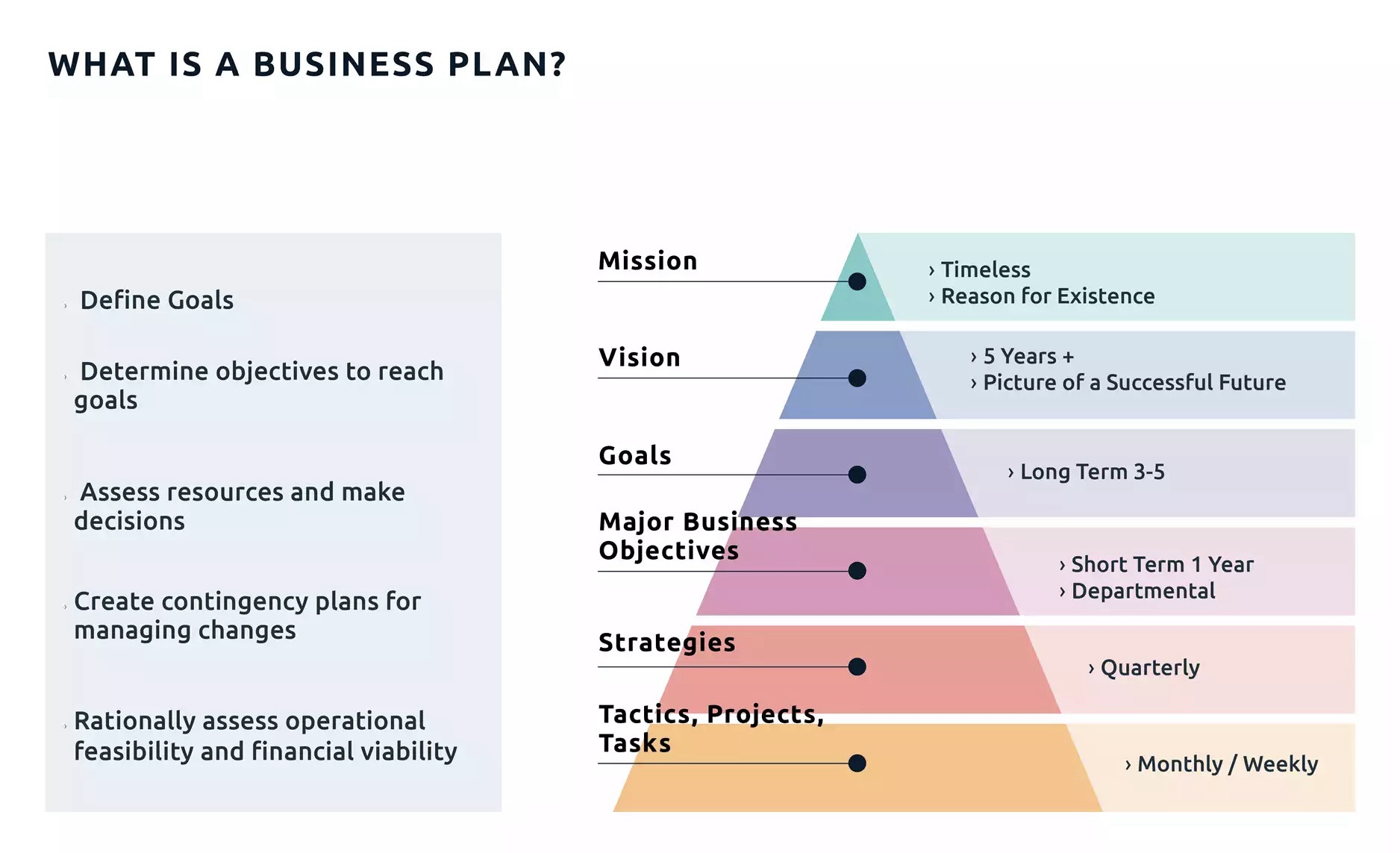
Roadmap and business roadmap

A roadmap is a strategic plan that defines a goal or desired outcome and includes the major steps or milestones needed to reach it. It also serves as a communication tool, a high-level document that helps articulate strategic thinking—the why—behind both the goal and the plan for getting there.

A business roadmap is a visual representation of your business strategy. It outlines the steps, goals, initiatives, and milestones needed to achieve your long-term plans. A business roadmap is also more tactical, focusing on how you will reach your objectives.

Eight Bukets – Challenge

Six – Create Value – Capture Value

I’m giving you the map, now you must walk the path

https://youtu.be/qllWAheHkms?si=fCkbOSRuRO5kZ0ol

The 80 – 20 Rule

https://www.investopedia.com/terms/1/80-20-rule.asp

Posted in software online review

software-online-review

NEED CONSTRUCTION WORKER – https://software-online-review.com/startup-online-hiring-scheme-online/ARCHITECTS & SOFTWARE DEVELOPERS

https://www.delawareinc.com/

https://eqvista.com/

https://www.ycombinator.com/library/Ek-stages-of-startups

https://www.investopedia.com/articles/personal-finance/011216/llc-vs-incorporation-inc-which-should-i-choose.asp

https://www.investopedia.com/terms/i/incorporate.asp

https://www.investopedia.com/terms/a/acquisition.asp

https://system1.com/

https://www.semrush.com/

https://www.theverge.com/2019/12/4/20994361/google-alphabet-larry-page-sergey-brin-sundar-pichai-co-founders-ceo-timeline

https://www.britannica.com/topic/Google-Inc

https://www.cnbc.com/2018/09/04/8-surprising-facts-you-might-not-know-about-googles-early-days.html

https://en.wikipedia.org/wiki/PageRank

https://www.google.com/search/howsearchworks/

https://www.google.com/search/howsearchworks/our-approach/ads-on-search/

https://developers.google.com/search

https://pagespeed.web.dev/

https://www.catchpoint.com/

https://search.google.com/search-console/about

https://sitekit.withgoogle.com/

https://www.investopedia.com/articles/markets/011516/top-5-google-shareholders-goog.asp

https://www.nasdaq.com/market-activity/stocks/goog

https://startup.google.com/programs/accelerator/

https://developers.google.com/community/accelerators

https://www.jetbrains.com/idea/

https://www.jetbrains.com

https://neuechair.com/

https://www.google.com/

The 5 stages of a startup

  • Solving the problem. Running a successful business is all about producing something that solves a problem. …
  • 2. Development. This is where it starts getting serious. …
  • Entering the market. …
  • Scaling. …
  • Maturity.

Buy it Now

https://sedo.com/us/

https://sedo.com/search/?keyword=software-online-review.com

https://www.trustpilot.com/review/software-online-review.com

Uncut Diamond

This article breaks down everything you need to know about uncut diamonds and how you can make a smart investment.

Filling in some gaps in your jewellery knowledge or trying to discover some untold secrets in the jewellery business? Uncut diamonds are not something that are often talked about. This article breaks down everything you need to know about uncut diamonds and how you can make a smart investment when picking out gorgeous stone jewellery.

Uncut Diamond Jewellery explained?

An uncut diamond, as suggested by the name, is a diamond in its most natural form. Prior to any shaping to enhance proportion, symmetry and polish involved in diamond cutting, an uncut diamond is a raw diamond that is completely virgin and free from human manipulation.

What is an uncut Diamond worth and why are Diamonds cut?

Apart from their quirky edge, there is not a whole lot of value in purchasing raw diamonds. Uncut diamonds are typically worth less than traditionally cut diamonds as their unpolished, rough edges hinder how well light is refracted. This reduces their sparkle and brilliance, thus reducing their market value. 

What does a raw uncut Diamond look like?

An uncut diamond is often bumpy and dull with no real structure. An acquired taste, uncut diamond rings provide a uniqueness and level of beauty some like to hold with others even looking for a rough diamond ring to mark their love.

Diamond Cut Breakdown

To create beautiful diamonds that are worth thousands, diamond cutters have the difficult job of trying to create finished products which align in proportion, symmetry and polish. Make no mistake, while this is easy to decide in theory, cutting diamonds is  a challenge where compromises often have to be made. Compromising factors such as diamond weight, to create the right proportions and symmetry, or  proportions and symmetry to avoid cutting further diamond and reducing weight.

In a similar way to natural diamonds, poorly cut diamonds can also refract light badly, resulting in little to no sparkle and less spread for your carat weight. To identify how you can be savvy and well informed when choosing your own diamond jewellery, here is everything you need to know about cuts. 

Developed in the 1940’s to 1950’s by the Gemological Institute of America (GIA), cut grades were developed to allow independent labs to identify a diamond’s clarity, colour and structure. A prime example of a predetermined cut grade is a brilliant cut diamond which will have 57 or 58 facets accurately cut and defined. While miniature, this provides a system to govern how well a diamond will sparkle.

While they offer a significant discount in price, poorly cut diamonds lack luster and you will be paying for a diamond without any sparkle. To ensure that you have an effective diamond that is worthwhile, we always suggest purchasing a diamond with an “excellent” to “good” cut. However, if you are still interested in purchasing a diamond of a lower cut, we suggest taking a look in person under various lighting conditions to avoid any disappointment.

Website, other related websites and blogs created as a scratch base pilot project for merging and evolving to something better and highly valuable.

Posted in software, technology

Netlify Review 2026: Credit-Based Pricing, Features, and Who It Suits

Verdict: Netlify is a strong choice for hosting static sites and front-end projects that deploy from Git, and its free plan is enough to try it properly. The catch in 2026 is the credit-based pricing, which makes your bill depend on traffic and deploys. Check your expected usage before you rely on the free plan for anything important. Official site: Netlify.

What Netlify is and who it is for

Netlify is a web hosting and deployment platform. You connect a project, push your code, and Netlify builds and publishes it on a global CDN. It also runs serverless functions, so you can add back-end logic without managing a server.

It suits front-end developers, freelancers building client sites, and small teams working with static site generators and modern JavaScript frameworks. It is less suited to people who want a traditional all-in-one WordPress host or who need full control of a server, where a virtual machine is a better match.

Key features

  • Deploys from Git, API or AI tools. Netlify’s pricing page lists all three on the free plan.
  • Unlimited deploy previews. Each change can get its own preview URL before you publish. Deploy previews and branch deploys do not use credits.
  • Custom domains with SSL on every plan, including free.
  • Functions, Blob storage and Netlify Database. Listed as available on the free plan, with limits that grow on paid plans.
  • Global CDN for serving sites and assets.
  • Basic firewall traffic rules and rate limiting on the free plan.
  • Form submissions are not metered by credits. Netlify’s billing documentation lists them as free.

Pricing (checked October 2026)

Prices are in US dollars and billed monthly, according to Netlify’s pricing page. Plans include a monthly pool of credits, and usage draws it down. Netlify’s documentation lists these costs: 15 credits per production deploy, 20 credits per GB of bandwidth, 2 credits per 10,000 web requests and 10 credits per GB-hour of compute. Deploy previews, branch deploys and failed deploys are not charged.

PlanPrice (USD, monthly)Included creditsNotes
Free$0300 per monthHard limit, no credit packs
Personal$91,000 per monthOne person; extra credits 500 for $5
ProFrom $203,000 per monthUnlimited team members; extra credits 1,500 for $10
EnterpriseCustomCustomSSO, SLA and dedicated support

Pro has higher tiers, for example 5,000 credits for $33 per month and 20,000 for $126, and rollover of unused credits applies only to Pro tiers of 5,000 credits or more. An important detail: on the free plan, when the 300 credits run out, Netlify’s documentation says your web projects are paused and visitors see a Site not available page until credits reset at the next billing cycle.

Pros and cons

Pros

  • A free plan with custom domains, SSL and unlimited deploy previews.
  • Simple Git-based workflow that is quick to set up.
  • Pro covers a whole team for one flat fee, with no per-seat charge.
  • Preview deploys and form submissions do not consume credits.

Cons

  • Credit-based billing is harder to predict than a flat monthly price.
  • The free plan pauses your sites when credits run out, which is risky for anything live.
  • Bandwidth-heavy sites can use credits quickly, since bandwidth is charged per GB.
  • Netlify’s pricing has changed more than once recently, so older reviews may be wrong.
  • It is built for front-end and serverless projects, not for traditional server-based applications.

Alternatives

  • Vercel: a very similar Git-based platform and the company behind Next.js; often the first alternative to compare if you use that framework.
  • Cloudflare Pages: hosting from Cloudflare that integrates with its CDN and Workers; worth checking if you already use Cloudflare.

We did not verify the current limits of these services for this article, so compare their official pricing pages against your expected traffic.

FAQ

Is Netlify free?

Yes, there is a free plan at $0 with 300 credits a month. It works as a hard limit, and you cannot buy extra credits on it.

What happens if I use all my credits?

On the free plan, projects are paused until the next cycle. On Personal and Pro, Netlify’s documentation says auto-recharge is what keeps projects active once the monthly credits are used, so consider turning it on and setting your own budget limits.

Do I pay per team member?

Not on Pro. Netlify lists unlimited team members on Pro at the plan price. Personal is for one person.

Can I host a dynamic site?

You can add dynamic behaviour through serverless functions and a database, but the platform is built around front-end deployments. Check that your project fits that model first.

Closing verdict

Netlify remains one of the easiest ways to publish a modern website from a Git repository. The free plan is good for learning and small projects, and Pro is reasonable for a team. Just estimate your bandwidth and deploy count against the credit costs first, so the pricing model does not surprise you.